
Easy Setup
Overview
Easy Setup gathers the core settings needed to start using AITuberKit on a single tab. When you need more detailed controls, use the links in each section to open the corresponding category.
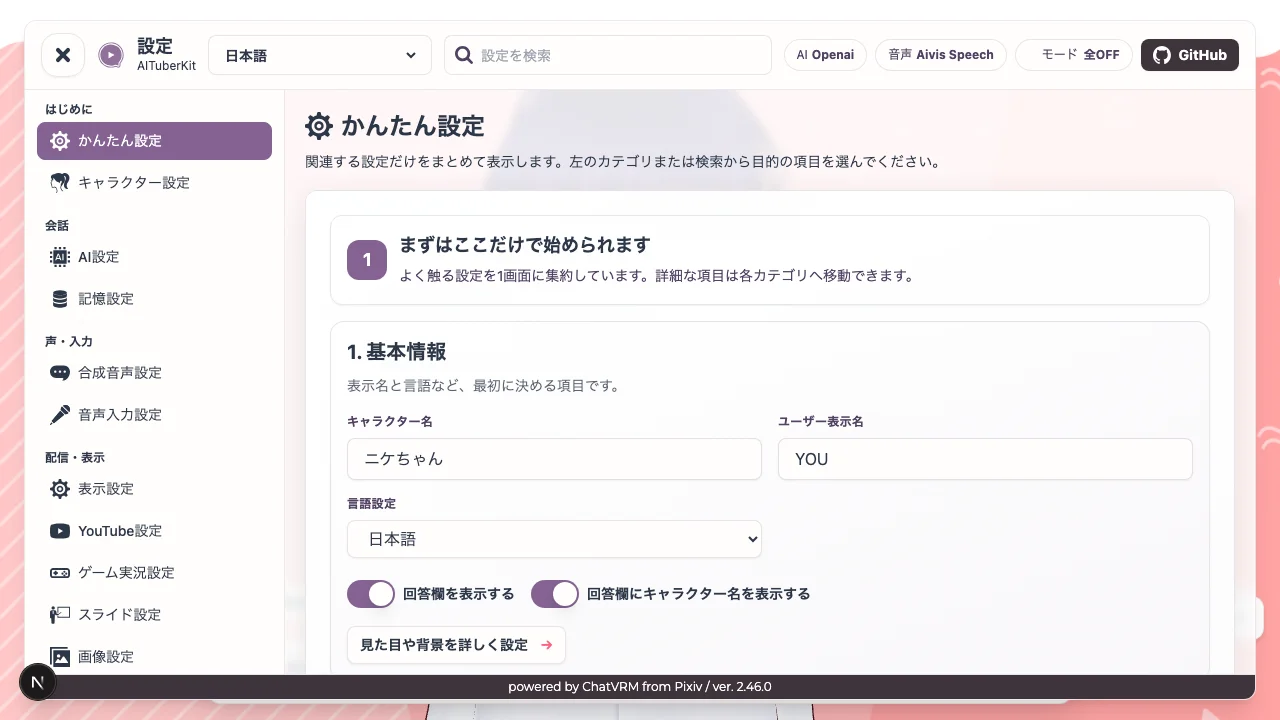
Settings Screen Layout
The settings screen is organized into left-side category navigation, top search and status controls, and the main settings area.
- Search: Find settings by name or related keywords
- Display language: Switch the UI language from the selector in the header
- Status chips: Check the selected AI service, voice engine, and enabled modes
- Categories: Start, Conversation, Voice/Input, Streaming/Display, Automation, and Other
1. Basics
Set the names and language first.
- Character name: The AI character name displayed on screen
- User display name: The user name used in chat logs and prompts
- Language: The base language for UI and language-dependent settings
- Show answer text: Shows AI responses on screen when the chat history is closed
- Show character name in answer: Shows the character name in the answer area
Configure backgrounds, themes, and display controls in Basic Settings.
2. AI And Conversation
Configure the AI service, API key, model, and other fields needed to start a conversation.
- AI service: Choose OpenAI, Anthropic, Google Gemini, Azure OpenAI, and other services. Service icons are shown in the selector
- API key: Enter the API key when the selected AI service requires one
- Model: Select the model used by the selected AI service. Most services provide a selectable list
- Service-specific fields: Enter additional values when required, such as the Azure OpenAI endpoint, Dify URL, LM Studio/Ollama URL and model name, OpenRouter, OrcaRouter, or API Route model name, or Custom API endpoint
- Custom model: Enable this when entering a model name that is not in the list
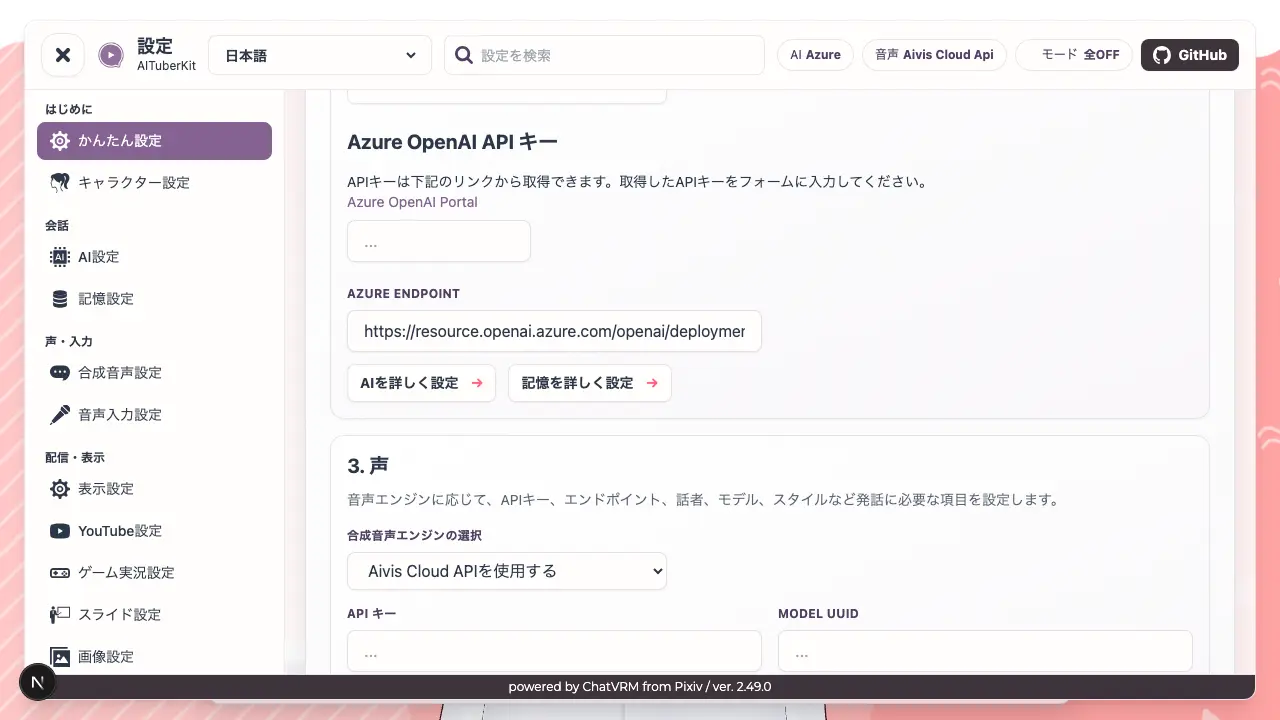
Configure reasoning, multimodal behavior, external linkage, max tokens, past messages, and other advanced controls in AI Service Settings. For long-term memory, see Memory Settings.
3. Voice
Choose the voice synthesis engine used by the character and configure the minimum fields required for speech.
Supported engines are VOICEVOX, Koeiromap, Google Text-to-Speech, Style-Bert-VITS2, AivisSpeech, Aivis Cloud API, GSVI TTS, ElevenLabs, Cartesia, OpenAI TTS, and Azure TTS.
Depending on the selected engine, Easy Setup shows fields such as server URL, API key, speaker, model ID, model UUID, style ID or style name, Voice ID, and TTS model. For example, VOICEVOX shows the server URL and speaker, while Aivis Cloud API shows the API key, model UUID, and style settings.
Adjust detailed voice parameters such as speed, pitch, and intonation in Voice Settings. For microphone input, see Speech Input Settings.
4. Optional Features
Configure streaming, images, slides, automatic speech, and other optional features when needed.