
Advanced Settings
Back Up and Restore Settings
You can download the AITuberKit settings saved in your current browser as a JSON file and import them into another browser or device. These actions are available under Advanced Settings on the settings screen.
Download Settings
Click Download Settings to save the current settings in a file named aituber-kit-settings-YYYYMMDD-HHMMSS.json.
By default, sensitive information such as API keys is excluded from the download. If you need a complete migration, enable Include sensitive information such as API keys before downloading the file.
When including sensitive information
API keys, authorization headers, custom API request bodies, kiosk passcodes, and similar values are stored as plain text in the JSON file. Do not publish or share the file, and keep it in a secure location.
Import a Settings File
Select an AITuberKit settings JSON file under Import Settings File and approve the confirmation dialog. The settings will be applied and the page will reload. The maximum supported file size is 5 MB.
- Files that do not contain sensitive information preserve API keys and other sensitive values currently saved in the browser
- Files that contain sensitive information overwrite API keys and other sensitive values with the values from the file
- Older settings versions are converted to the current format when supported
- Unsupported formats, invalid values, and files with a settings version newer than the current app cannot be imported
What Is Not Included in the Backup
This feature backs up browser settings only. It does not include the following files or data:
- Character model, background, placed image, or slide files
- Conversation history
- Long-term memory files or data
- Environment variable files such as
.envand.env.local
Environment variables are managed separately from settings files. When NEXT_PUBLIC_ALWAYS_OVERRIDE_WITH_ENV_VARIABLES=true, environment variables always override browser settings, so importing a settings file is disabled.
Reset Settings
You can reset AITuberKit settings and return to the initial state.
Note
When you perform a reset operation, all settings except conversation history will be restored to their default values, and the page will be reloaded. If environment variables are set, those values will take precedence.
Debug Logging
Enable this setting to output debug logger.log messages in production client builds. This value is embedded in the client bundle at build time, so set it before building. Server-side logs are output regardless of this setting.
# Debug logging in production client builds (true/false)
NEXT_PUBLIC_DEBUG_LOG="false"
Background Video Settings
You can use shared screen or webcam video as a background. When using multimodal functionality, it's also possible to send screenshots of the background video to the AI.
Environment Variables:
# Background video usage setting (true/false)
NEXT_PUBLIC_USE_VIDEO_AS_BACKGROUND="false"
Video Display Hide Setting
You can hide the video preview (background display or floating display) shown on the screen even while screen sharing or using the webcam. Since the capture itself continues, image transmission to the AI and captures for game commentary mode remain enabled, allowing you to keep the screen layout clean.
Even when the preview is hidden, you can show it again at any time by clicking the "+" icon on the video operation buttons.
Environment Variables:
# Hide video display setting (true/false)
NEXT_PUBLIC_HIDE_VIDEO_DISPLAY="false"
Quick Menu Display Settings
You can toggle the display of the quick menu button shown on the home screen. You can turn off this option to keep the screen simple as needed.
Environment Variables:
# Quick menu display setting (true/false)
NEXT_PUBLIC_SHOW_QUICK_MENU=true
Timestamp Settings
You can set whether to include a timestamp (UTC) in user utterances. Including a timestamp allows the AI to generate responses considering the time.
TIP
To utilize this feature, include text like the following in your system prompt:
"When user input is requested with a [timestamp], this represents the time in UTC timezone at the time of the request, so please generate a response considering that time."
Environment Variables:
# Timestamp inclusion setting (true/false)
NEXT_PUBLIC_INCLUDE_TIMESTAMP_IN_USER_MESSAGE=false
Preset Questions
This feature allows you to display predefined questions in the UI that can be sent with a single click. It's convenient to register frequently used questions or standard phrases.
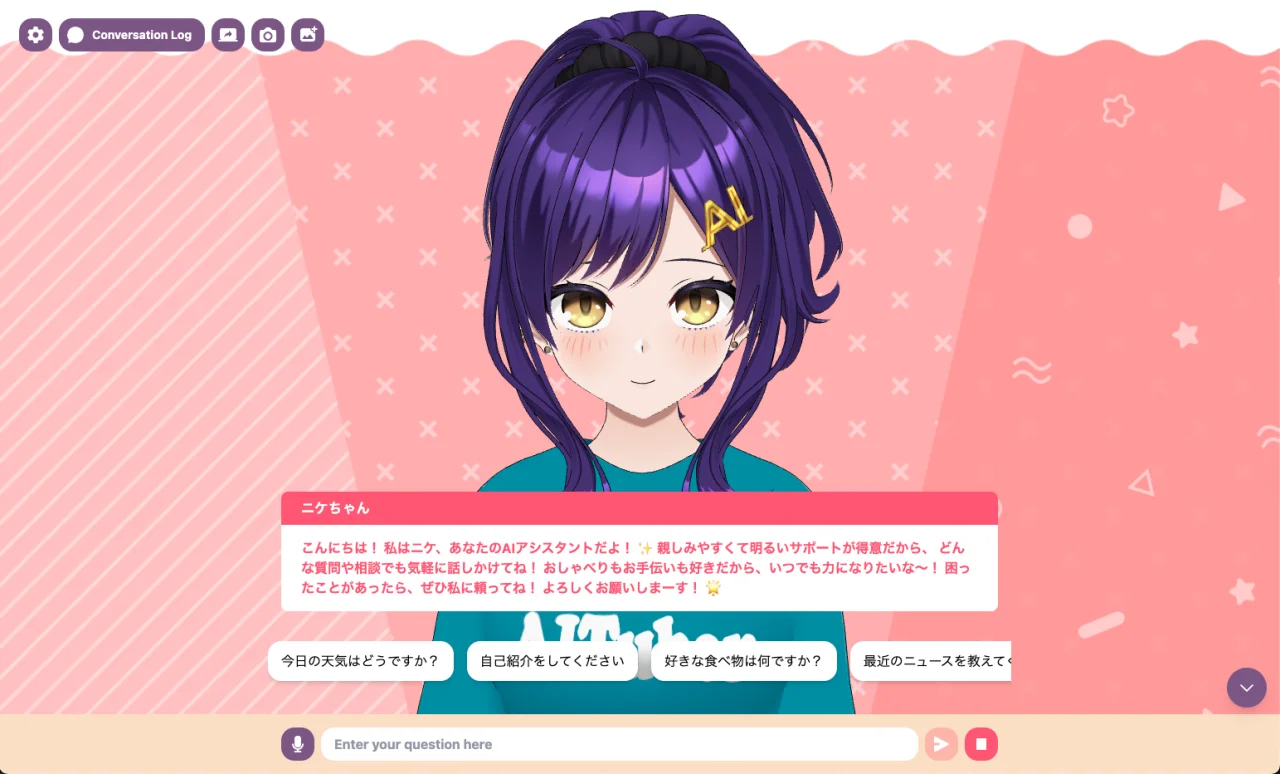
Basic Operations
- Add a question: Enter a question in the text input field and click the "+" button
- Edit a question: Directly edit the text of a registered question
- Delete a question: Click the "-" button
- Reorder questions: Drag the handle (⋮⋮) on the left side of the question to change the order
Toggle Display
You can toggle the display of questions. If you don't use this feature, you can turn off this option to keep the UI simple.
Environment Variables:
# Preset questions display setting (true/false)
NEXT_PUBLIC_SHOW_PRESET_QUESTIONS=true
# Preset question text (comma-separated)
NEXT_PUBLIC_PRESET_QUESTIONS=How is the weather today?,Please introduce yourself,What is your favorite food?,Tell me about recent news