YouTube Settings
Overview
Provides a function to retrieve comments from YouTube live streams and have AI characters respond. It can automatically pick up comments from users and generate responses from AI.
Environment Variables:
# Whether to enable YouTube mode (true/false)
NEXT_PUBLIC_YOUTUBE_MODE=false

# YouTube API key
NEXT_PUBLIC_YOUTUBE_API_KEY=

# YouTube live stream ID
NEXT_PUBLIC_YOUTUBE_LIVE_ID=

# Comment source selection (youtube-api or onecomme)
NEXT_PUBLIC_YOUTUBE_COMMENT_SOURCE=youtube-api

# YouTube comment fetch interval (seconds)
NEXT_PUBLIC_YOUTUBE_COMMENT_INTERVAL=10
YouTube Mode
When YouTube mode is enabled, comments can be retrieved from YouTube live streams, allowing AI characters to respond automatically.
Note
When YouTube mode is enabled, some features are automatically disabled.
YouTube API Settings
Settings for using the YouTube API.
YouTube API Key
Set the API key to use the YouTube API. To retrieve YouTube comments, you need an API key from Google Cloud Platform.
How to Get an API Key
- Access Google Cloud Platform, create an account or log in
- Create a project
- Enable "YouTube Data API v3" from "APIs & Services" > "Library"
- Generate an API key from "Credentials" > "Create Credentials" > "API Key"
- Enter the generated API key in this settings field
YouTube Live ID
Enter the ID of the YouTube live stream from which you want to retrieve comments. This value can be obtained from the URL of the YouTube live stream.
Example: If the YouTube URL is https://www.youtube.com/watch?v=abcdefghijk, the Live ID is abcdefghijk.
Note
The YouTube Live ID is the ID of a specific live stream, not a channel ID.
How to Use
When YouTube mode is enabled, a YouTube mode button appears in the upper left corner of the screen.
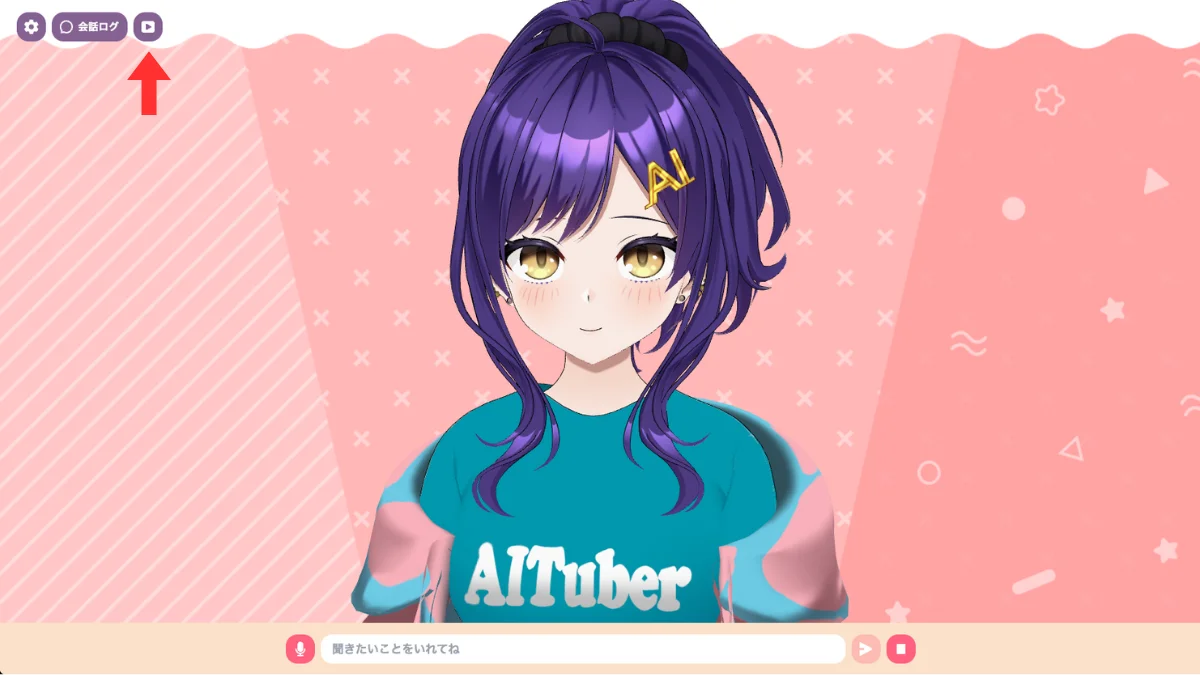
You can toggle comment retrieval on/off by clicking this button.
Comment Processing Mechanism
AITuber Kit processes YouTube comments in the following flow:
- Retrieve comments from the live stream using YouTube Data API v3 at set intervals
- Add retrieved comments to the processing queue
- Sequentially send comments in the queue to AI to generate responses
- Have the character speak the generated responses
Comment Source Selection
You can select how comments are retrieved.
- YouTube API: Retrieve comments directly using YouTube Data API v3
- OneComme: Retrieve comments via OneComme. When using OneComme, the OneComme application must be running
# OneComme port number
NEXT_PUBLIC_ONECOMME_PORT=11180
Comment Fetch Interval
You can set the comment fetch interval in seconds. The default is 10 seconds.
Error Handling and Notes
- Comment Retrieval Error: Comments may not be retrieved if the API key is invalid or has reached its limit
- Rate Limit: YouTube Data API has usage limits, so you may reach the limit during long broadcasts
- Comment Filtering: Comments starting with "#" are ignored
- Resource Consumption: Memory usage may increase during long live streams
Conversation Continuation Mode
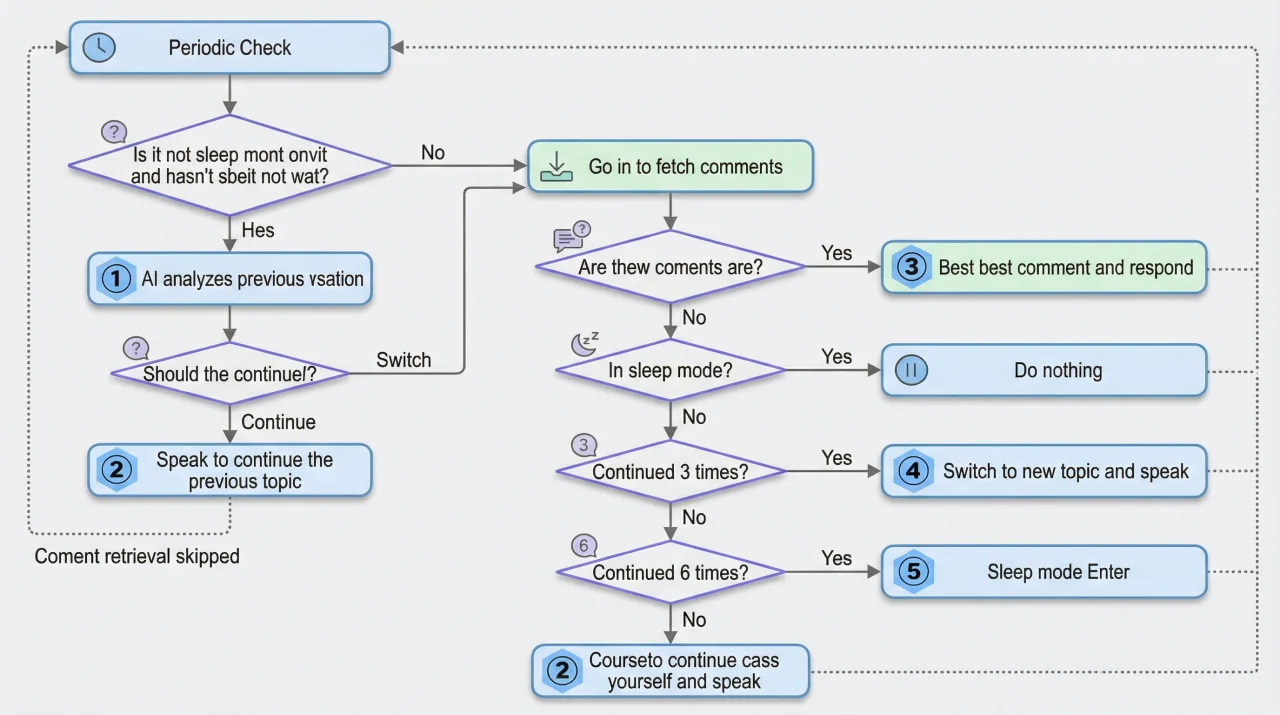
A mode where AI continues the conversation on its own when there are no comments. Even if there are no comments for a while, the AI character will proactively develop the conversation. Cannot be used when slide mode, external linkage mode, or Dify is selected.
Internally, it uses Mastra Workflow to evaluate the conversation state and automatically determine one of three branches: "continue", "generate new topic", or "sleep".
Feature Details
In Conversation Continuation Mode, if there are no comments for a certain period of time, the AI refers to the past conversation context and provides new topics to maintain the natural flow of conversation.
Customization
You can customize the behavior of Conversation Continuation Mode with environment variables.
# Number of no-comment rounds before generating a new topic (default: 3)
NEXT_PUBLIC_CONVERSATION_CONTINUITY_NEW_TOPIC_THRESHOLD=3

# Number of no-comment rounds before sleep (default: 6)
NEXT_PUBLIC_CONVERSATION_CONTINUITY_SLEEP_THRESHOLD=6

# Prompt customization (leave empty to use defaults)
NEXT_PUBLIC_CONVERSATION_CONTINUITY_PROMPT_EVALUATE=""
NEXT_PUBLIC_CONVERSATION_CONTINUITY_PROMPT_CONTINUATION=""
NEXT_PUBLIC_CONVERSATION_CONTINUITY_PROMPT_SELECT_COMMENT=""
NEXT_PUBLIC_CONVERSATION_CONTINUITY_PROMPT_NEW_TOPIC=""
NEXT_PUBLIC_CONVERSATION_CONTINUITY_PROMPT_SLEEP=""
Notes
About Usage Costs
Since LLM is called multiple times for a single response, API usage fees may increase.
How to Use
You can toggle Conversation Continuation Mode on/off by clicking the "Conversation Continuation Mode" button when YouTube mode is enabled.